ROS client libraries
Using colcon to build packages
Colcon is a build management system. What is a build management system?
You have used gcc to compile (build) *.c files. When projects get big, there are too many gcc commands to run and too many gcc flags to keep track of. To keep track of dependencies and gcc flags, we use build management systems. Colcon sits on top of a hierarchy of build management systems. Makefiles and CMake are used to build C++ projects, while python setuptools are used to build python projects. Colcon allows you to compile multiple ROS projects while figuring out inter project dependencies.
What follows is mostly a copy of ROS beginners tutorial : https://
Make sure colcon in installed on the laptop. It is already installed in the jetbot docker container.
laptop:~/ece417$ sudo apt install python3-colcon-common-extensionsA ROS workspace is a directory with a particular structure. Commonly there is a src subdirectory. Inside that subdirectory is where the source code of ROS packages will be located. Typically the directory starts otherwise empty.
colcon does out of source builds. By default it will create the following directories as peers of the src directory:
The
builddirectory will be where intermediate files are stored. For each package a subfolder will be created in which e.g. CMake is being invoked.The
installdirectory is where each package will be installed to. By default each package will be installed into a separate subdirectory.The
logdirectory contains various logging information about each colcon invocation.
Create a workspace
First, create a directory (ws) on the jetbot to contain our workspace
jetbot@nano-4gb-jp45:~/ece417$ mkdir -p ws/src
jetbot@nano-4gb-jp45:~/ece417$ cd ws
Add some sources
Let’s clone jetbot_ros repository into the src directory of the workspace:
jetbot@nano-4gb-jp45:~/ece417$ cd ws/src
jetbot@nano-4gb-jp45:~/.../src$ git clone https://github.com/dusty-nv/jetbot_ros -b master
Source an underlay
It is important that we have sourced the environment for an existing ROS 2 installation that will provide our workspace with the necessary build dependencies for the example packages. This is achieved by sourcing the setup script provided by a binary installation or a source installation, ie. another colcon workspace (see Installation). We call this environment an underlay.
Our workspace, ws, will be an overlay on top of the existing ROS 2 installation. In general, it is recommended to use an overlay when you plan to iterate on a small number of packages, rather than putting all of your packages into the same workspace.
Build the workspace
In the root of the workspace, run colcon build. Since build types such as ament_cmake do not support the concept of the devel space and require the package to be installed, colcon supports the option --symlink-install. This allows the installed files to be changed by changing the files in the source space (e.g. Python files or other non-compiled resources) for faster iteration.
Since our ROS installation is a docker image, we will need to run a docker container and enter in it first. We will pull a new docker image on jetbot. Also, we will be using docker a lot, we need to avoid sudo. Add jetbot user to the docker group. Exit the ssh and ssh to jetbot again.
jetbot@nano-4gb-jp45:~/ece417$ sudo adduser jetbot docker
jetbot@nano-4gb-jp45:~/ece417$ <Press Ctrl+D>
logout
Connection to 141.114.195.160 closed.
laptop:~$ ssh [email protected]
jetbot@nano-4gb-jp45:~/$ cd ece417
jetbot@nano-4gb-jp45:~/ece417$
Pull a new docker image called vdhiman86/ros:humble-pytorch-l4t-r32.7.1.
jetbot@nano-4gb-jp45:~/ece417$ docker pull vdhiman86/ros:humble-pytorch-l4t-r32.7.1Create a new docker container from this image. Note that some flags have changed since we created the last docker container.
jetbot@nano-4gb-jp45:~/ece417$ docker container rm ros-humble
jetbot@nano-4gb-jp45:~/ece417$ docker run -it \
	--runtime nvidia \
	--network host \
	--privileged \
	--device /dev/video* \
	-v /dev/bus/usb:/dev/bus/usb \
	-v /tmp/argus_socket:/tmp/argus_socket \
	-v /home/jetbot:/home/jetbot \
	--workdir /home/jetbot/ece417 \
	--name=ros-humble \
	vdhiman86/ros:humble-pytorch-l4t-r32.7.1
sourcing   /opt/ros/humble/install/setup.bash
ROS_ROOT   /opt/ros/humble
ROS_DISTRO humble
root@nano-4gb-jp45:~/ece417$
It is recommended that you add this command to a file and call it rundocker.sh.
docker run -it \
	--runtime nvidia \
	--network host \
	--privileged \
	--device /dev/video* \
	-v /dev/bus/usb:/dev/bus/usb \
	-v /tmp/argus_socket:/tmp/argus_socket \
	-v /home/jetbot:/home/jetbot \
	--workdir /home/jetbot/ece417 \
	--name=ros-humble \
	vdhiman86/ros:humble-pytorch-l4t-r32.7.1
Now change directory to ws and run colcon build.
root@nano-4gb-jp45:~/ece417$ cd ws
root@nano-4gb-jp45:~/ece417/ws$ colcon build --symlink-install
Context: on jetbot, inside docker container
After the build is finished, we should see the build, install, and log directories:
Source the environment
When colcon has completed building successfully, the output will be in the install directory. Before you can use any of the installed executables or libraries, you will need to add them to your path and library paths. colcon will have generated bash/bat files in the install directory to help set up the environment. These files will add all of the required elements to your path and library paths as well as provide any bash or shell commands exported by packages.
root@nano-4gb-jp45:~/ece417/ws$ source install/setup.bashContext: on jetbot, inside docker container
After sourcing the environment, the compiled packages should be part of ros2 pkg list
root@nano-4gb-jp45:~/ece417/ws$ ros2 pkg list | grep -E 'jetbot_ros'
jetbot_ros
Context: on jetbot, inside docker container
The new install/setup.bash is a replacement of /opt/ros/humble/install/setup.bash. Modify the ~/ece417/setup.bash that we created last time, to source install/setup.bash instead of /opt/ros/humble/install/setup.bash. The new setup.bash should look like this:
source ws/install/setup.bash
export RMW_IMPLEMENTATION=rmw_cyclonedds_cpp
export CYCLONEDDS_URI="file://$(pwd)/cyclonedds.xml"
alias rosenv='printenv | grep -E "ROS|RMW_IMPLEMENTATION|AMENT|CYCLONEDDS_URI"'
Source the new setup.bash and check the environment variables
root@nano-4gb-jp45:~/ece417/ws$ cd ..
root@nano-4gb-jp45:~/ece417$ source setup.bash
root@nano-4gb-jp45:~/ece417$ rosenv
AMENT_PREFIX_PATH=/home/jetbot/ece417/ws/install/jetbot_ros:/opt/ros/humble/install
CYCLONEDDS_URI=file:///home/jetbot/ece417/cyclonedds.xml
ROS_ROOT=/opt/ros/humble
ROS_VERSION=2
ROS_LOCALHOST_ONLY=0
ROS_PYTHON_VERSION=3
RMW_IMPLEMENTATION=rmw_cyclonedds_cpp
ROS_DISTRO=humble
Context: on jetbot, inside docker container
Install the Adafruit_MotorHAT package from inside the docker container.
root@nano-4gb-jp45:~/ece417$ pip3 install Adafruit_MotorHATContext: on jetbot, inside docker container
Try a demo
With the environment sourced, we can run executables built by colcon. Let’s run the motor_waveshare node from jetbot_ros.
root@nano-4gb-jp45:~/ece417$ ros2 run jetbot_ros motors_waveshareContext: on jetbot, inside docker container
In another terminal on the laptop, let’s run a publisher node (don’t forget to source the setup script).
laptop:~/ece417$ source setup.bash
laptop:~/$ rosenv
ROS_VERSION=2
ROS_PYTHON_VERSION=3
AMENT_PREFIX_PATH=/opt/ros/humble
ROS_LOCALHOST_ONLY=0
CYCLONEDDS_URI=file:///home/vdhiman/wrk/teaching/ece417/website/docs/labnotes/09-22/cyclonedds/cyclonedds.xml
ROS_DISTRO=humble
RMW_IMPLEMENTATION=rmw_cyclonedds_cpp
Context: on laptop
Introspect the running ros nodes and expected topics.
:caption: Context: on laptop
laptop:~/ece417$ ros2 node list
/jetbot/motors
laptop:~/ece417$ ros2 topic list
/jetbot/cmd_vel
/parameter_events
/rosout
Then run a keyboard teleop node (Attn: Make sure you either lift the robot or decrease the speed below 0.07 before pressing a move button)
laptop:~/ece417$ ros2 run teleop_twist_keyboard teleop_twist_keyboard --ros-args --remap cmd_vel:=/jetbot/cmd_vel
This node takes keypresses from the keyboard and publishes them
as Twist messages. It works best with a US keyboard layout.
---------------------------
Moving around:
   u	i	o
   j	k	l
   m	,	.

For Holonomic mode (strafing), hold down the shift key:
---------------------------
   U	I	O
   J	K	L
   M	<	>

t : up (+z)
b : down (-z)

anything else : stop

q/z : increase/decrease max speeds by 10%
w/x : increase/decrease only linear speed by 10%
e/c : increase/decrease only angular speed by 10%

CTRL-C to quit
Visualize the connected nodes in the RQT graph. In another terminal, source setup.bash and launch rqt_graph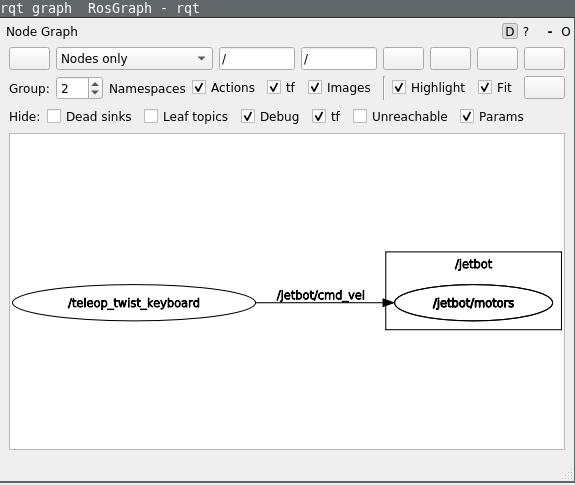
Top stop, press Ctrl+C in all the three terminals for rqt_graph, teleop_twist_keyboard, and motors_waveshare on jetbot.
Create your own package
What is a ROS 2 package?
A package is an organizational unit for your ROS 2 code. If you want to be able to install your code or share it with others, then you’ll need it organized in a package. With packages, you can release your ROS 2 work and allow others to build and use it easily.
Package creation in ROS 2 uses ament as its build system and colcon as its build tool. You can create a package using either CMake or Python, which are officially supported, though other build types do exist.
What makes up a ROS 2 package?
ROS 2 Python and CMake packages each have their own minimum required contents:
CMake
CMakeLists.txtfile that describes how to build the code within the packageinclude/<package_name>directory containing the public headers for the packagepackage.xmlfile containing meta information about the packagesrcdirectory containing the source code for the package
Python
package.xmlfile containing meta information about the packageresource/<package_name>marker file for the packagesetup.cfgis required when a package has executables, soros2 runcan find themsetup.pycontaining instructions for how to install the package<package_name>- a directory with the same name as your package, used by ROS 2 tools to find your package, contains__init__.py
The simplest possible package may have a file structure that looks like:
CMake
my_package/
CMakeLists.txt
include/my_package/
package.xml
src/
Python
my_package/
package.xml
resource/my_package
setup.cfg
setup.py
my_package/
Create a Python package
The command syntax for creating a new package in ROS 2 is:
root@nano-4gb-jp45:~/ece417/ws/src$ ros2 pkg create --build-type ament_python py_pubsub
going to create a new package
package name: py_pubsub
destination directory: /home/jetbot/ece417/ws/src
package format: 3
version: 0.0.0
description: TODO: Package description
maintainer: ['root <[email protected]>']
licenses: ['TODO: License declaration']
build type: ament_python
dependencies: []
creating folder ./py_pubsub
creating ./py_pubsub/package.xml
creating source folder
creating folder ./py_pubsub/py_pubsub
creating ./py_pubsub/setup.py
creating ./py_pubsub/setup.cfg
creating folder ./py_pubsub/resource
creating ./py_pubsub/resource/py_pubsub
creating ./py_pubsub/py_pubsub/__init__.py
creating folder ./py_pubsub/test
creating ./py_pubsub/test/test_copyright.py
creating ./py_pubsub/test/test_flake8.py
creating ./py_pubsub/test/test_pep257.py
Write the publisher node
In a file ws/src/py_pubsub/py_pubsub/publisher_member_function.py write:
import rclpy
from rclpy.node import Node

from std_msgs.msg import String


class MinimalPublisher(Node):
    def __init__(self):
    	super().__init__('minimal_publisher')
    	self.publisher_ = self.create_publisher(String, 'topic', 10)
    	timer_period = 0.5  # seconds
    	self.timer = self.create_timer(timer_period, self.timer_callback)
    	self.i = 0

    def timer_callback(self):
    	msg = String()
    	msg.data = 'Hello World: %d' % self.i
    	self.publisher_.publish(msg)
    	self.get_logger().info('Publishing: "%s"' % msg.data)
    	self.i += 1


def main(args=None):
	rclpy.init(args=args)

	minimal_publisher = MinimalPublisher()

	rclpy.spin(minimal_publisher)

	# Destroy the node explicitly
	# (optional - otherwise it will be done automatically
	# when the garbage collector destroys the node object)
	minimal_publisher.destroy_node()
	rclpy.shutdown()


if __name__ == '__main__':
	main()
Edit package.xml to add dependencies.
<exec_depend>rclpy</exec_depend>
<exec_depend>std_msgs</exec_depend>
Edit the setup.py file to add the following line within the console_scripts brackets of the entry_points field:
entry_points={
        'console_scripts': [
                'talker = py_pubsub.publisher_member_function:main',
        ],
},
Verify setup.cfg looks like this
[develop]
script-dir=$base/lib/py_pubsub
[install]
install-scripts=$base/lib/py_pubsub
Write the subscriber node
In a file ws/src/py_pubsub/py_pubsub/subscriber_member_function.py write:
import rclpy
from rclpy.node import Node

from std_msgs.msg import String


class MinimalSubscriber(Node):

    def __init__(self):
    	super().__init__('minimal_subscriber')
    	self.subscription = self.create_subscription(
        	String,
        	'topic',
        	self.listener_callback,
        	10)
    	self.subscription  # prevent unused variable warning
    def listener_callback(self, msg):
    	self.get_logger().info('I heard: "%s"' % msg.data)


def main(args=None):
	rclpy.init(args=args)

	minimal_subscriber = MinimalSubscriber()

	rclpy.spin(minimal_subscriber)

	# Destroy the node explicitly
	# (optional - otherwise it will be done automatically
	# when the garbage collector destroys the node object)
	minimal_subscriber.destroy_node()
	rclpy.shutdown()


if __name__ == '__main__':
	main()
Edit setup.py to add the listener = .. line to the console_scripts, next to the talker script:
entry_points={
        'console_scripts': [
                'talker = py_pubsub.publisher_member_function:main',
                'listener = py_pubsub.subscriber_member_function:main'
        ],
},
Build and run
root@nano-4gb-jp45:~/ece417/ws$ rosdep install -i --from-path src --rosdistro humble -y
root@nano-4gb-jp45:~/ece417/ws$ colcon build --packages-select py_pubsub
root@nano-4gb-jp45:~/ece417/ws$ source install/setup.bash
root@nano-4gb-jp45:~/ece417/ws$ ros2 run py_pubsub talker
<Press Ctrl+p Ctrl+q> to detach from docker container without stopping it
Context: on jetbot, in docker container
You can start another docker terminal in the same docker container using docker exec. Make sure the docker container is still running.
jetbot@nano-4gb-jp45:~/ece417/ws$ docker container ls -aStart a new terminal inside the docker container ros-humble
jetbot@nano-4gb-jp45:~/ece417$ docker container exec -it ros-humble bash
root@nano-4gb-jp45:~/ece417$ source setup.bash
root@nano-4gb-jp45:~/ece417$ ros2 run py_pubsub listener
You can stop the listener by pressing Ctrl+C and Ctrl+D to quit the session in the container. To reattach to the detached session type
jetbot@nano-4gb-jp45:~/ece417/ws$ docker container attach ros-humbleNow you can press Ctrl+C to stop the talker and Ctrl+D to quit the session and stop the container.
You can start a stopped docker container and attach to it by:
jetbot@nano-4gb-jp45:~/ece417/ws$ docker container start -ia ros-humbleFor learning more about docker, please go through https://